
About 15 minutes
Set up your station.
You need the Windows PC next to your radio and your phone. Do it all at home, in front of the station PC: pairing a phone needs the code on its screen. After that, everything works from anywhere.
How it connects
What you need
- A Windows 10 or 11 PC (64-bit) next to the radio, set never to sleep
- The radio's USB cable to that PC (a radio without USB sound also needs a sound-card interface), or Ethernet for an Icom network radio
- Internet at home, for using the station from away
- The app on each device you operate from
What you don’t
- No router port forwarding
- No VPN
- No static IP address
- No separate WSJT-X install for FT8: the decoder is built in
Part 1
On the Windows PC next to the radio
Keep the computer awake
If the PC goes to sleep, you can’t reach your station from away. Open Start › Settings › System › Power (on some PCs, Power & battery), then Screen, sleep & hibernate timeouts. Under Plugged in, set sleep and hibernate to Never. On Windows 10 it is Start › Settings › System › Power & sleep. The screen can still turn off; that’s fine.
Download the installer
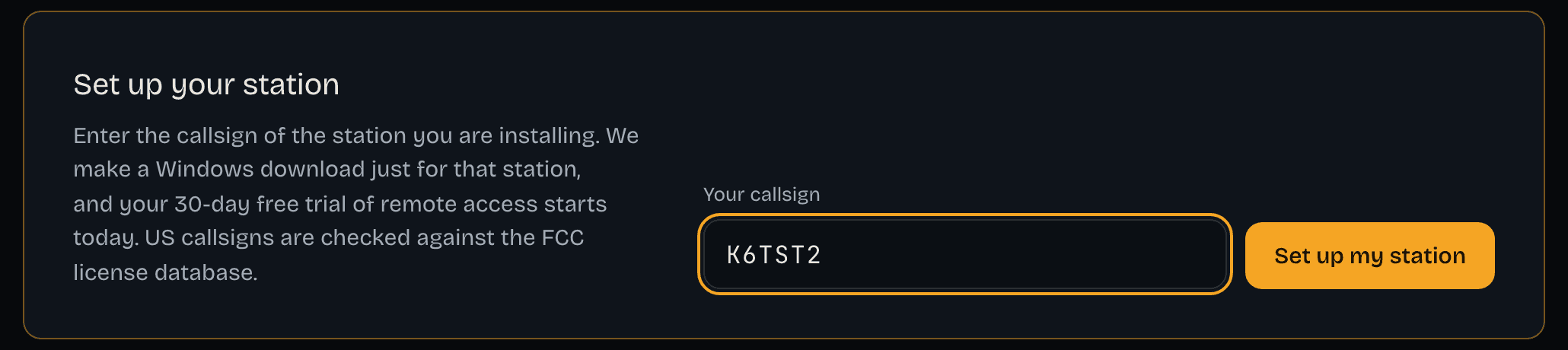
On the station PC, sign in on your account page, type your callsign and click Set up my station, then Download for Windows. When the download finishes, click Open file.
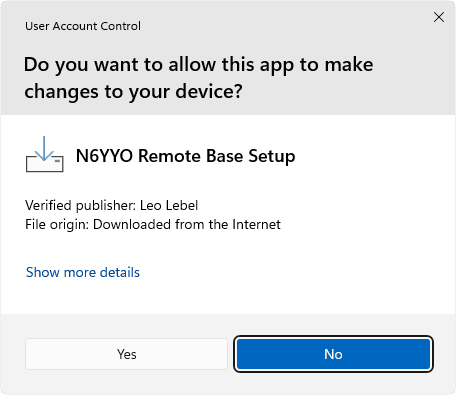
Click Yes
Windows asks whether to allow N6YYO Remote Base Setup to make changes to your device. Click Yes on the left. No is the highlighted button, so don’t just press Enter.
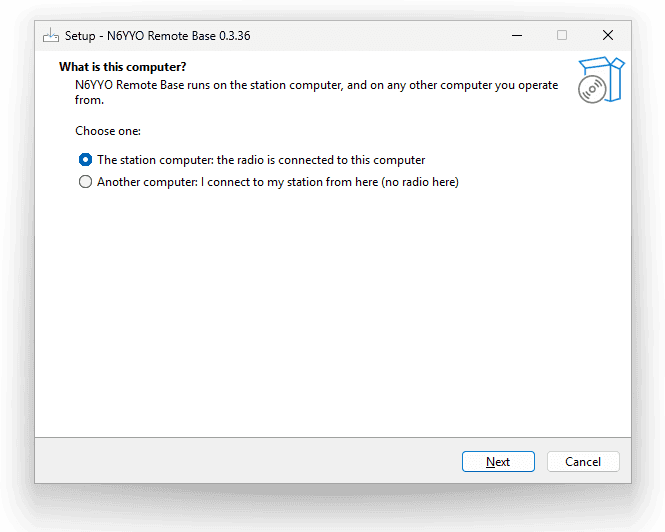
What is this computer?
Choose The station computer: the radio is connected to this computer and click Next. Leave the folder as it is and click Next.
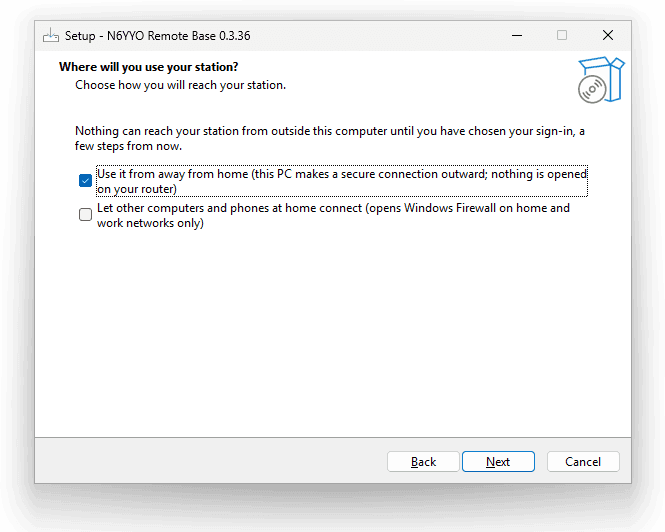
Next, then Install
On Where will you use your station? keep Use it from away from home ticked and click Next. On Ready to Install, click Install. Your station gets its own secure internet address by itself. There are no router ports to open.
Part 2
Connect the radio
On USB? Install the radio's driver first
If the radio connects to the PC with a USB cable, install its USB driver from the manufacturer’s website before you plug the cable in. Then plug it in and switch the radio on.
Let the installer find it
After the files are copied, Your radio looks for the radio. If it finds it on USB, click Next. If it says Nothing on USB, check the radio is on and plugged in, then click Look again. You can also choose the USB port and model yourself.
Want to look around first? Choose No radio yet: try N6YYO Remote Base with a simulated radio, and add the real one later in Settings.
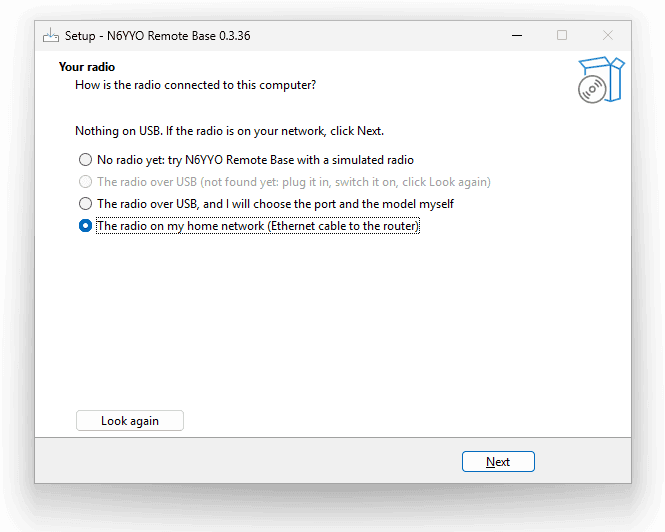
Radio on your home network instead?
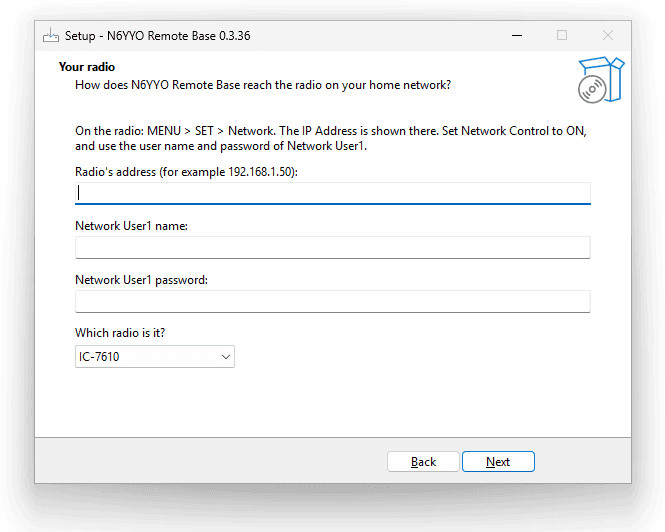
On radios like the IC-7610 that connect by Ethernet: on the radio, open MENU › SET › Network, note its IP address, set Network Control to ON, and note the name and password of Network User1. In the installer choose The radio on my home network, then type the radio’s address and that Network User1 name and password.
Close RS-BA1 or wfview first: the radio accepts one program at a time.
Your sign-in
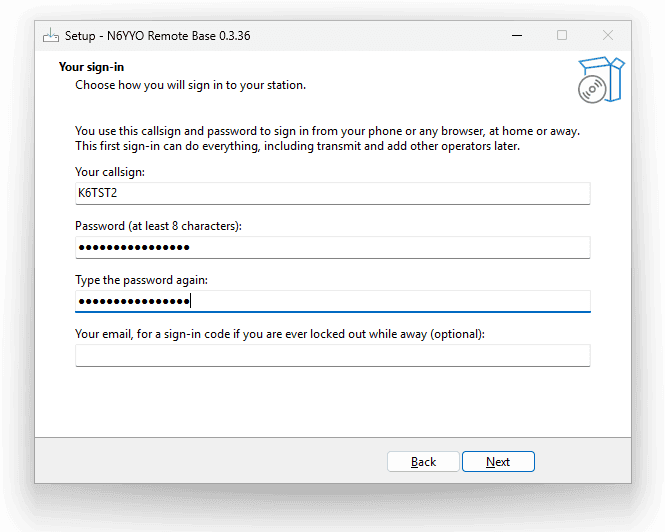
On Your sign-in, your callsign is already filled in. Choose a password of at least 8 characters and type it twice. Write it down: it’s what protects your transmitter. You can also add your email, so the station can send you a sign-in code if you are ever locked out while away.
Finish
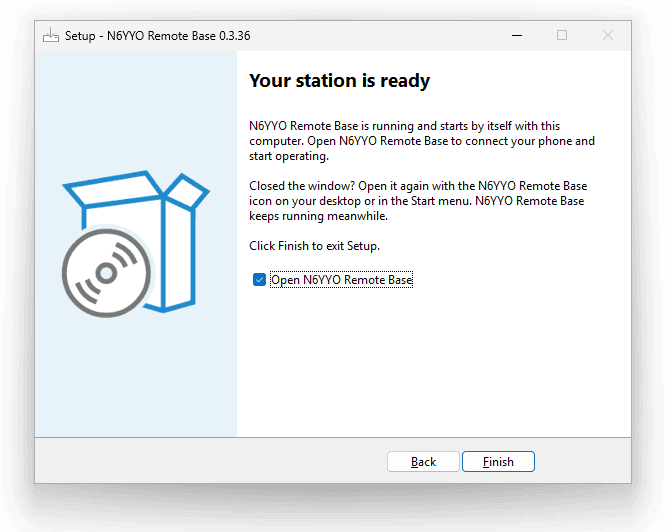
On Your station is ready, leave Open N6YYO Remote Base ticked and click Finish. The N6YYO Remote Base app window opens on the PC. Type your callsign and password and click Sign in. The first time, a Pair a phone window opens with a code. Leave it open for part 3.
Part 3
Pair your apps
Install the app first
Install the app before you scan anything. The iPhone and iPad app is on the App Store; the Android app is a download from our Android page. The download page has both.
On Android, open the Android download page on the phone and download the app. When Android asks, allow installs from your browser or files app. Then install it and open it; pairing happens inside the app.
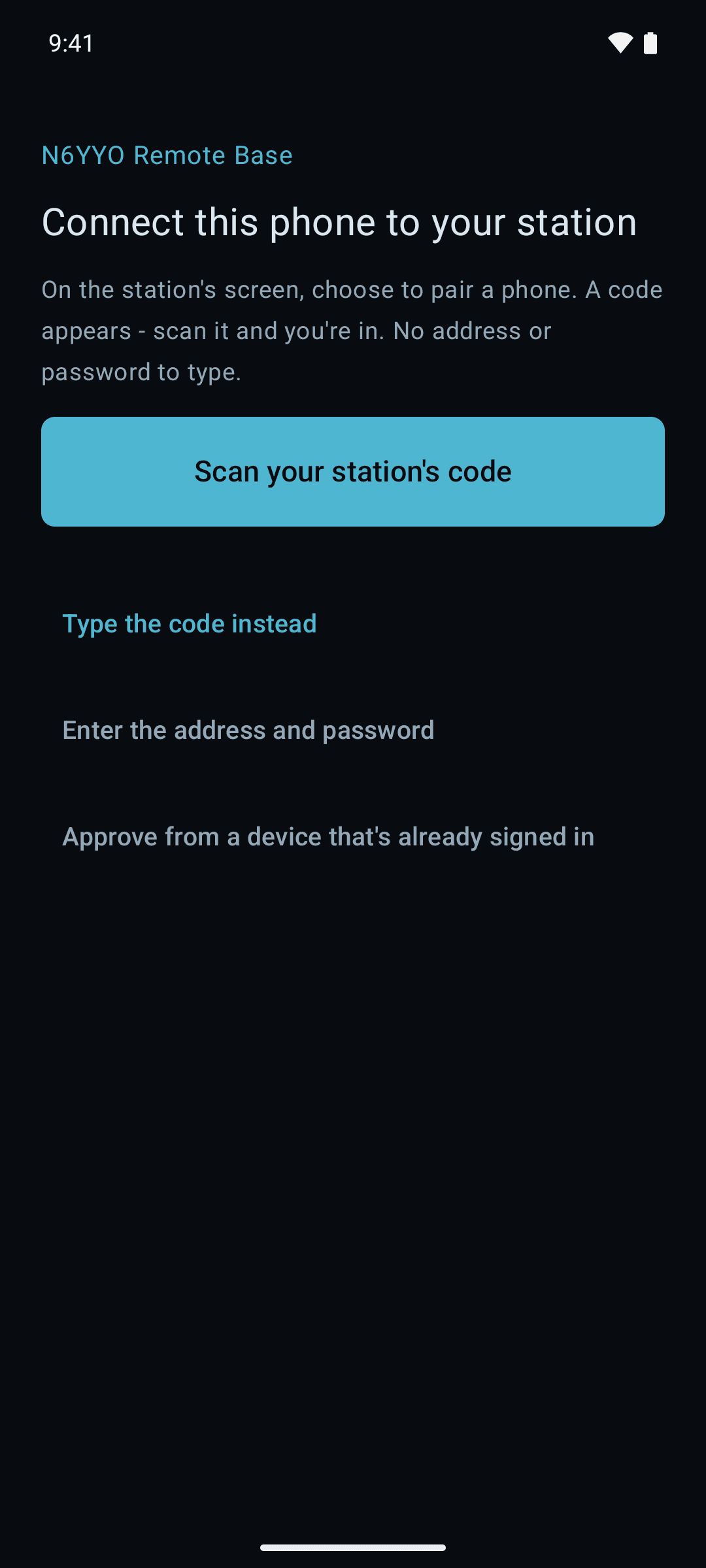
Android: scan in the app
Open the app and tap Scan your station’s code, then point it at the code in the Pair a phone window. Or tap Type the code instead, type the station’s address and the 8-character code, and tap Connect. From then on it connects by itself, at home or away.
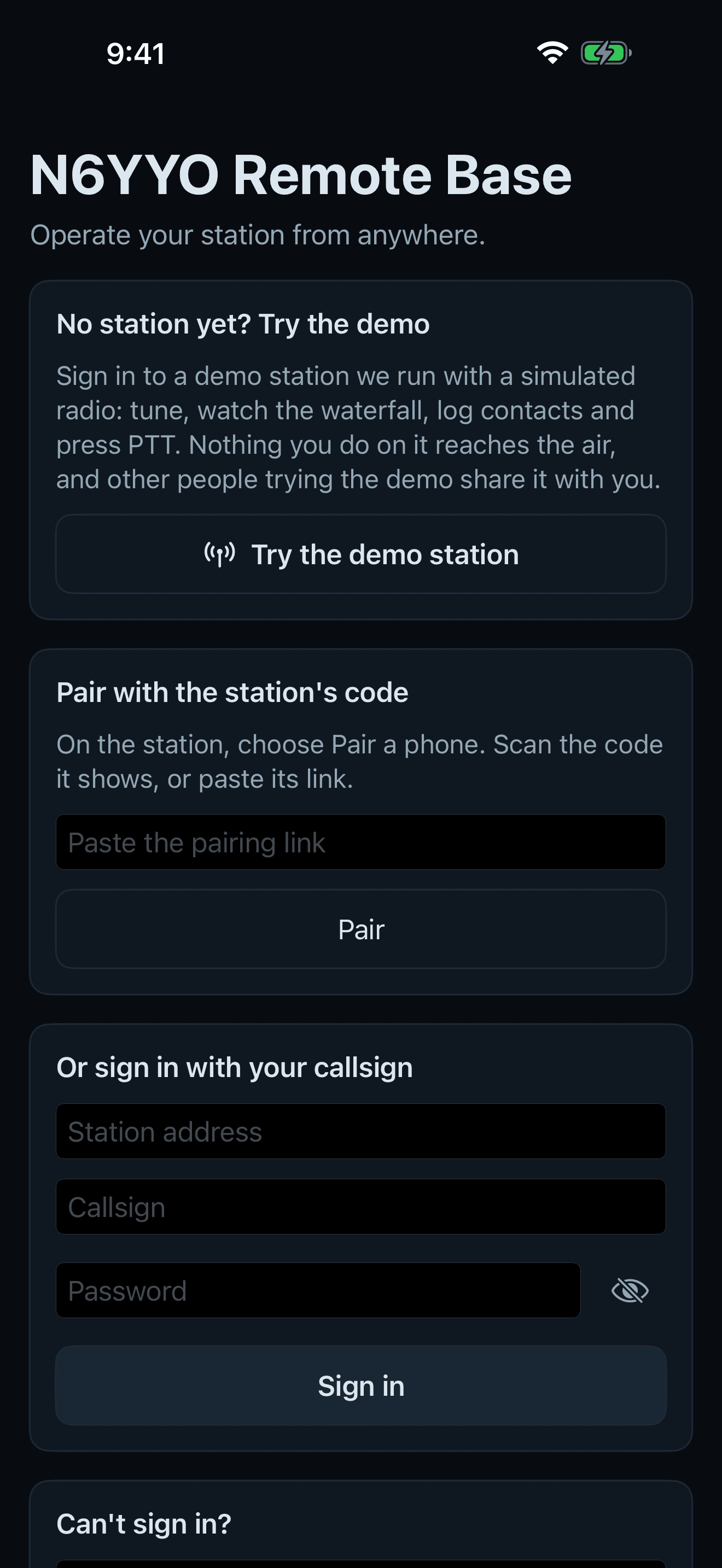
iPhone or iPad: scan in the app
Open the app. Under Pair with the station’s code, scan the code, or paste the pairing link (on the station, Copy link in the same window) and tap Pair.
Another Windows PC
Run the same installer on that PC and choose Another computer: I connect to my station from here. When it finishes, open N6YYO Remote Base there and paste the link from Copy link, or type the station’s address and the code it shows.
Codes run out
A code lasts 10 minutes and works for one phone; New code makes another. Closed the window? Click Pair a phone at the top right of the N6YYO Remote Base window on the station PC.
Part 4
Using it
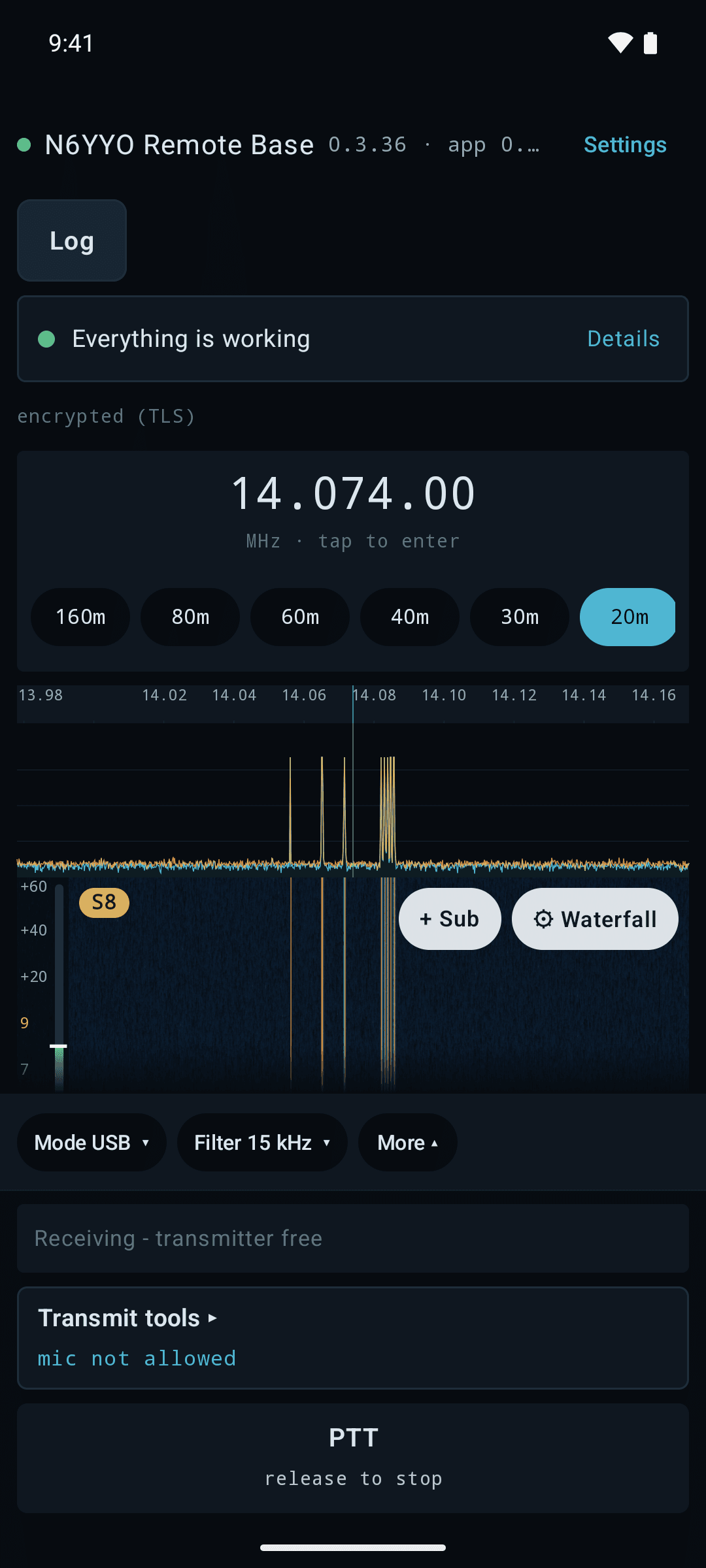
- The big number is the radio’s frequency. Tap it to type one or jump to another band; the arrows on either side step it.
- On radios with a spectrum scope, the waterfall shows the signals. Tap one to tune to it.
- Listen plays the radio (Sound on in the iPhone, iPad and Mac app). On Android, allow notifications the first time so it keeps playing with the screen off.
- PTT: hold to talk, let go to stop. Prefer tap on, tap off? Choose it in the app’s settings. Allow the microphone the first time.
- In the Windows and Android apps, when the radio transmits from somewhere else, PTT turns red and reads STOP. One tap ends it.
- More, under the frequency, has the rest of the radio’s controls.
- Settings, in the N6YYO Remote Base window on the station PC, is where you change how the radio connects, and your microphone and speakers.
- When a new version of the station is out, the apps say so, and an admin can tap Update now; settings and sign-ins are kept. The phone apps update from their stores.
Something not right?
The phone says it isn't connected
Check that the station PC is on, awake and online, then close the app and open it again. The app connects even when the radio is off: the station keeps looking for the radio and picks it up within about 30 seconds of it coming on.
The pairing code ran out
Click New code and scan again. Each code lasts 10 minutes.
No sound
Tap Listen (Sound on in the iPhone, iPad and Mac app), and turn up the device's volume.
PTT does nothing
The app says why, just above PTT. Only one operator can transmit at a time.
I closed the N6YYO Remote Base window on the PC
The station keeps running. Double-click the N6YYO Remote Base icon on the desktop, or find it in the Start menu.
I forgot the password
On the station PC, open Start › N6YYO Remote Base › Create station account, type the same callsign, and choose a new password.
Still stuck? Contact support and tell us your callsign and what you see.